Billy Wallson
Senior DirectorBilly Wallson is a senior operations director with over 15 years of experience scaling remote teams and implementing lean business strategies.

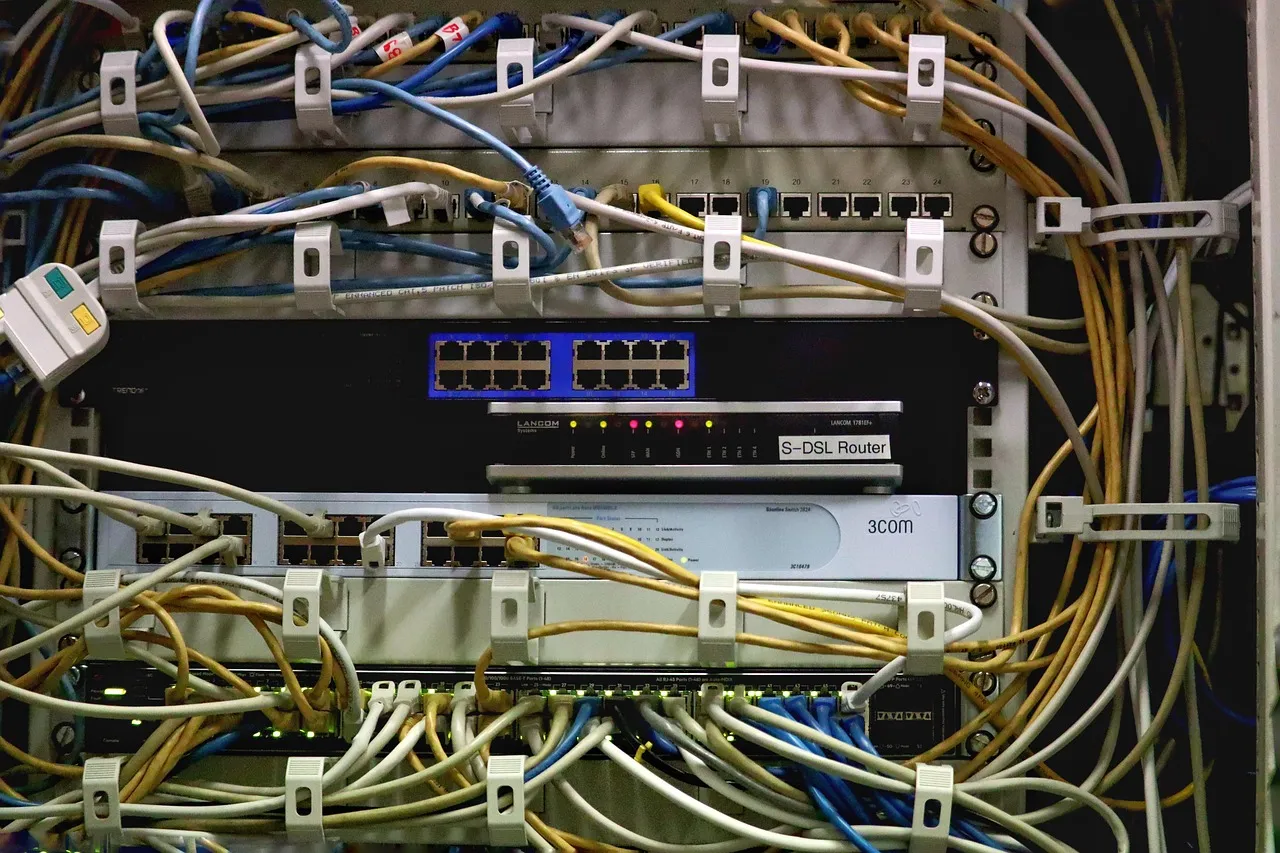
cPanel explained in the simplest terms: it is the browser-based dashboard that translates server administration into clickable icons, wizards, and forms that anyone can navigate without touching a command line. When you purchase a shared hosting plan—or many managed VPS plans—from virtually any provider in 2026, the first screen you see after logging in is a cPanel dashboard organized into cleanly labeled sections: Files, Databases, Domains, Email, Metrics, Security, Software, and Advanced. Each section contains tools that, without cPanel, would require you to memorize Linux commands, edit configuration files by hand, and risk breaking your entire site with a single mistyped character. cPanel wraps all of that complexity in a consistent, documented interface that has become so synonymous with web hosting that "check cPanel" is as natural a phrase among site owners as "check my inbox." Understanding this tool is not optional for anyone serious about managing a website—it is the common language spoken by every major hosting provider, every support tutorial, and every migration workflow in the industry.
The story of how cPanel achieved this ubiquity begins in 1996, when developer J. Nick Koston built the first version as an internal control panel for a hosting company called SpeedHost. What started as a convenience tool for a single provider quickly became a commercial product, and by the early 2000s cPanel had established itself as the default interface for Linux-based shared hosting worldwide. Its architecture follows a client-server model: the cPanel software runs on your hosting server alongside the web server (Apache, LiteSpeed, or Nginx), the database server (MySQL or MariaDB), the email server (Exim), and the DNS server (BIND or PowerDNS), and it communicates with all of those services through their respective APIs and configuration files. When you click "Create Email Account" in cPanel, the interface validates your input, writes entries to the mail server's configuration, creates the necessary directories on the filesystem, and returns a confirmation—all without you ever needing to know where Exim stores its user databases or how Dovecot manages mailbox directories. This abstraction layer is the entire value proposition: it makes server administration accessible to people who have never seen a terminal prompt and never want to. For foundational context on where cPanel fits into the broader hosting landscape, read our web hosting basics guide, which covers the server infrastructure that cPanel sits on top of.
The "industry standard" designation is not hyperbole. As of 2026, cPanel powers the control interfaces for an estimated 70% to 80% of all shared hosting accounts worldwide, with the remaining market split primarily between Plesk, DirectAdmin, and proprietary panels. This dominance creates a powerful network effect: hosting support teams are universally trained on cPanel, every YouTube tutorial assumes cPanel as the interface, and third-party developers design their integrations against cPanel's conventions first. When you learn cPanel, you are not learning one company's idiosyncratic tool—you are learning the shared language of web hosting administration that transfers seamlessly between Namecheap, HostGator, SiteGround, Bluehost, A2 Hosting, InMotion, and virtually every other major provider in the English-speaking market. Hosting Captain has evaluated dozens of control panels over the years, and the consistency, documentation depth, and feature breadth of cPanel remains unmatched for beginners and experienced site owners alike.
When you log into cPanel for the first time, the interface presents a grid of labeled sections—each containing multiple tool icons—in a layout that has remained broadly stable for over a decade. While the visual design varies depending on the theme your provider has selected (the "Paper Lantern" theme was standard for years; the newer "Jupiter" theme modernizes the appearance), the functional groupings are consistent across every cPanel installation. Understanding what each section does and which tools you will use daily versus those you will touch once and forget is the fastest way to build cPanel confidence without becoming overwhelmed by options that do not apply to your situation.
The Files section contains the tools for managing the actual files that make up your website. The File Manager is the most-used tool here—a full-featured file browser built into your browser that lets you upload, download, edit, rename, copy, move, and delete files and directories directly on your server without needing an FTP client. You can right-click any file to access compression, permission changes, and code editing with syntax highlighting. The FTP Accounts tool creates separate file-transfer credentials for handing off to a developer who should not have your full cPanel password. The Backup tool generates and downloads full or partial account backups, and the Disk Usage analyzer reveals which directories are consuming your storage allocation—often exposing forgotten backup plugins that have been silently accumulating multi-gigabyte archives for months. The Images tool lets you perform basic operations like thumbnail generation and format conversion directly on the server.
The Databases section is where you create and manage MySQL or MariaDB databases—the structured storage engines that power WordPress, Joomla, Drupal, Magento, and virtually every other dynamic web application. The MySQL Databases tool guides you through the three-step process of creating a database, creating a database user, and assigning that user to the database with specific privileges. The phpMyAdmin tool provides a browser-based interface for running raw SQL queries, importing and exporting database dumps, repairing corrupted tables, and browsing your data in a spreadsheet-like view. When a WordPress plugin update fails and corrupts a database table, phpMyAdmin's repair function often resolves the issue in seconds. For a deep technical dive into how these databases function and why they are the beating heart of your website, read our MySQL databases explained simply guide, which covers everything from basic terminology to disaster recovery procedures with step-by-step instructions.
The Domains section centralizes everything related to the domain names associated with your hosting account. The Addon Domains tool lets you host multiple separate websites under a single hosting plan—each with its own domain name, document root directory, and email accounts—which is how one shared hosting plan can power several distinct businesses or projects simultaneously. The Subdomains tool creates divisions of your main domain (like blog.yourdomain.com or shop.yourdomain.com) that function as independent sections. The Aliases tool (sometimes labeled Parked Domains) points multiple domain names to the same website, useful when you own common misspellings or alternative extensions of your primary domain. The Zone Editor provides direct access to the DNS records that control how your domain resolves—A records, CNAME records, MX records, TXT records—and while most site owners never need to touch this panel, understanding it lets you connect third-party services like Google Workspace or Microsoft 365 without relying on support tickets. For a full explanation of how domains and hosting work together at the DNS level, see our hosting vs domain guide and the Mozilla domain name guide for the technical protocol details underlying every domain registration.
The Email section provides everything needed to create and manage professional addresses at your own domain—[email protected], [email protected], [email protected]—rather than relying on a free Gmail or Yahoo address that undermines business credibility. The Email Accounts tool creates individual mailboxes with configurable storage quotas. The Forwarders tool redirects email from one address to another, consolidating multiple inboxes into one destination. The Autoresponders tool sends automated replies like out-of-office messages or receipt confirmations. The Email Deliverability tool checks that your SPF, DKIM, and DMARC records are properly configured to prevent outgoing mail from being flagged as spam. The Spam Filters tool, powered by Apache SpamAssassin, scores incoming messages and quarantines or discards those that exceed configurable thresholds. Roundcube webmail is accessible directly from cPanel, providing a Gmail-like browser interface for reading and composing messages without installing any desktop software. For most small businesses, this single section eliminates the need for a separate email hosting service, consolidating web hosting and email hosting into one bill and one management interface.
The Metrics section provides visibility into how people are finding and using your website without requiring Google Analytics or any third-party tracking scripts. The Awstats and Webalizer tools parse your server's raw access logs into human-readable reports showing unique visitors, page views, entry and exit pages, referring URLs, search keywords, browser and operating system breakdowns, and geographic origins by country. The Raw Access Logs tool lets you download unprocessed log files for analysis in external tools. The Bandwidth tool shows your monthly data transfer consumption with daily granularity, alerting you to unusual spikes that might indicate a traffic surge—or a hotlinked image consuming your resources. These built-in metrics are particularly valuable during a site's early days when you need to confirm that search engines are indexing your pages and that real humans are visiting, without the complexity of configuring an external analytics platform or navigating cookie consent requirements.
The Security section houses the tools that defend your site from unauthorized access, malware, and data interception. The SSL/TLS Status tool shows which of your domains and subdomains have active certificates and lets you provision new ones through AutoSSL, which integrates with Let's Encrypt or Sectigo to automatically obtain and renew certificates at no cost. The IP Blocker tool blacklists specific IP addresses or ranges sending malicious traffic. The Hotlink Protection tool prevents other websites from embedding your images directly, stopping bandwidth theft. The Leech Protection tool detects and blocks users sharing login credentials beyond allowed concurrent sessions. The ModSecurity tool provides a server-level web application firewall that blocks common attack patterns—SQL injection, cross-site scripting, remote file inclusion—before they reach your website's code. And the SSH Access tool lets advanced users enable secure shell connections for command-line server management, which is typically available only on VPS and dedicated hosting plans.
The Software section contains application installers and programming language settings. Softaculous or Installatron—the one-click installer your hosting provider bundles—lives here, providing automated installation of WordPress, Joomla, Drupal, PrestaShop, phpBB, and hundreds of other platforms in under two minutes. The PHP version selector lets you choose which PHP release your site runs on (critical for security—running an end-of-life version like PHP 7.4 in 2026 is an active vulnerability), and the PHP options tool adjusts memory limits, upload sizes, and execution times without editing php.ini files manually. Additional tools for Perl modules, RubyGems, and Node.js availability vary by hosting provider and plan tier.
The Advanced section houses tools that most beginners never need but which become essential as technical skills and site complexity grow. The Cron Jobs tool schedules automated tasks—running a PHP script hourly to import data, executing a database cleanup query nightly, or triggering a remote backup every Sunday afternoon. The Error Pages tool customizes the messages visitors see when they encounter a 404 (page not found) or 500 (server error). The MIME Types tool controls how the server handles specific file extensions. The Track DNS tool provides diagnostic reachability information for your domain from locations around the world. And the Indexes tool controls whether visitors can browse directory listings when no index file is present—a security consideration that prevents casual snooping of your file structure.
While cPanel contains dozens of tools across eight sections, the reality of day-to-day website management narrows the focus to a handful of workflows you will execute repeatedly. Mastering these tasks transforms cPanel from an intimidating grid of icons into an almost reflexive environment where you accomplish what you need in seconds. These are the operations that define the cPanel experience for the vast majority of site owners on shared hosting plans.
The File Manager is the cPanel tool you will open more frequently than any other—for uploading images, editing configuration files, clearing cached directories, or troubleshooting a broken plugin by renaming its folder. When a WordPress plugin update goes wrong and your site displays an unresponsive white screen, the fix often involves opening File Manager, navigating to /wp-content/plugins/, and renaming the offending plugin's folder to disable it—a thirty-second operation that resolves the issue without touching the database or requiring a full account restore. The built-in code editor includes syntax highlighting for PHP, HTML, CSS, and JavaScript, allowing you to modify .htaccess rules, wp-config.php settings, or theme styles directly in the browser. The file uploader accepts drag-and-drop operations for quick transfers of images, PDFs, or ZIP archives. Learning the keyboard shortcuts—Delete to remove a file, F2 to rename, F6 to move—and understanding the right-click context menus is a small time investment that repays in saved minutes nearly every day you manage a website.
Creating email accounts through cPanel's Email Accounts tool follows the same three-click pattern every time: click Create, enter the desired address (sales@, info@, yourname@), set a strong password using the built-in generator, and optionally set a storage quota for that specific mailbox. The new account is immediately accessible through any email client (Outlook, Thunderbird, Apple Mail, or your phone's mail application) or through the Roundcube webmail interface accessible directly from cPanel. cPanel automatically configures the required DNS records—MX records for mail routing, SPF records for sender verification, and DKIM records for message signing—removing the technical barriers that historically made self-hosted email an exercise in frustration. When you need to migrate email accounts between hosting providers, cPanel's built-in export and import tools transfer entire mailboxes including folder structures and read/unread status, making provider switches far less disruptive than they were a decade ago.
Database management becomes routine once you internalize the cPanel workflow: create a database for each new application, create a dedicated user for that database, assign the user full privileges, and record the credentials in a password manager. When you need a manual backup before a risky update, phpMyAdmin's Export tab generates a complete .sql file with a single click—select the database, choose the Quick export method with SQL format, and download the result to your local machine. When a database table becomes corrupted (symptoms include painfully slow WordPress admin panel loads and intermittent database connection errors), phpMyAdmin's Select All → With Selected → Repair Table operation often resolves the issue in under ten seconds. For WordPress migrations from staging to production domains, phpMyAdmin's Search → Find and Replace function handles the URL replacement across serialized data—a task that would require specialized plugins or command-line tools without cPanel's interface.
Installing WordPress through Softaculous is the workflow that transforms a blank hosting account into a functional website faster than any other method available to beginners. From the cPanel dashboard, you click the Softaculous icon (or locate WordPress under the Software section), click the Install tab, fill in the form fields—site name, site description, admin username, admin password, admin email address—select your domain from the dropdown menu, and click Install. Softaculous handles database creation, file extraction, wp-config.php generation, security salt randomization, and the initial setup wizard in a process that typically completes in under two minutes from start to finish. The same interface manages ongoing maintenance: Softaculous notifies you when a new WordPress version is available and provides one-click upgrade functionality with automatic pre-upgrade backups. The application library extends well beyond WordPress to include Joomla, Drupal, PrestaShop, Magento, phpBB, MediaWiki, OpenCart, and hundreds of other platforms—each installable with the same form-based workflow. Hosting Captain's shared and managed VPS plans include Softaculous with the full application catalog pre-configured and ready to use, because we believe the path from "I bought hosting" to "my site is live and functional" should be measured in minutes, not hours.
SSL certificate management through cPanel has been streamlined to the point of near-invisibility. On any modern cPanel installation with AutoSSL enabled, newly added domains, subdomains, and addon domains are automatically detected, and certificates are provisioned through Let's Encrypt or the provider's chosen certificate authority without any manual intervention whatsoever. The SSL/TLS Status page displays a grid of your domains with color-coded indicators—green lock icons for active valid certificates, yellow warning triangles for certificates nearing their expiration date, and red X marks for domains that are missing certificates entirely. A single "Run AutoSSL" button forces an immediate certificate scan and renewal for all domains simultaneously. This automation means that in 2026, a site launched on any properly configured shared hosting plan will have HTTPS enabled from the very first moment DNS resolves, with no manual certificate installation, no CSR generation, no private key management, and no risk of embarrassing browser security warnings appearing to your visitors. For sites requiring organization-validated (OV) or extended-validation (EV) certificates—typically e-commerce stores processing payments or enterprise sites with compliance requirements—cPanel's SSL/TLS interface also supports manual certificate installation through a guided wizard that validates the certificate, private key, and CA bundle before activation.
Awstats and Webalizer, accessible from cPanel's Metrics section, provide a privacy-respecting alternative to Google Analytics that requires no JavaScript tracking code embedded in your pages, no cookie consent banners, and no third-party data sharing. These tools parse your server's access logs—which record every HTTP request your server receives—and generate reports covering unique visitors, total visits, page views, hits, bandwidth consumed, most-viewed pages, entry and exit pages, referring search engines and keywords, browser and operating system breakdowns, and geographic distribution by country. The reports update on whatever schedule your provider configures for log rotation and processing (typically daily) and are accessible directly from cPanel without additional setup. While Awstats lacks the real-time dashboards, event tracking, and conversion funnel analysis of Google Analytics, it provides more than enough data for a content-driven website to understand which articles resonate, which traffic sources are sending visitors, and whether overall traffic is trending upward or downward over weeks and months.
Creating backups through cPanel's Backup tool is the habit that separates site owners who recover from disasters in minutes from those who lose years of content permanently. The Backup interface organizes downloads into two categories: full backups (which bundle your home directory files, MySQL databases, email forwarders, and email filters into a single compressed archive) and partial backups (which let you download just your home directory or just a specific database as separate, smaller files). For routine safety, downloading a partial backup of your most critical database weekly—a process that takes under sixty seconds for most sites—and storing it on your local computer or in cloud storage provides an insurance policy against plugin update failures, accidental content deletion, and hosting account issues. The backup file is a standard gzip-compressed SQL dump that can be restored through phpMyAdmin's Import function on any MySQL server, making it fully portable across hosting providers and platform migrations. Hosting Captain's shared and managed VPS plans also include automated daily backups retained for 30 days—configured and verified before your account is provisioned—so that even if you forget to run a manual backup, you have multiple restore points to fall back on.
While cPanel dominates the shared hosting landscape, it is not the only control panel on the market, and understanding the alternatives helps you evaluate hosting offers intelligently rather than dismissing any plan that substitutes a different interface. The three most significant cPanel competitors in 2026 are Plesk, DirectAdmin, and the proprietary hPanel developed by Hostinger. Each occupies a different position in the market and makes different trade-offs in complexity, platform compatibility, and ecosystem maturity.
Plesk, now owned by WebPros—the same parent company that owns cPanel, a consolidation that has reshaped the control panel market—is the leading alternative for hosting environments running Windows Server in addition to Linux. While cPanel is exclusively Linux-based (targeting CentOS, AlmaLinux, and CloudLinux), Plesk supports both Linux and Windows, making it the default choice for providers offering ASP.NET, MSSQL, and other Microsoft-stack hosting alongside traditional LAMP-stack plans. Plesk's interface organizes tools into a left-sidebar navigation rather than cPanel's grid-based home screen, which some users find cleaner and more logically grouped. Functionally, Plesk includes equivalents for nearly every cPanel tool—a file manager, database management through phpMyAdmin, email account creation, one-click WordPress installation through the WordPress Toolkit (which is arguably more feature-rich than Softaculous for WordPress-specific workflows, including staging, cloning, and mass-update capabilities), and SSL automation. The primary disadvantage for the average shared hosting user is ecosystem familiarity: tutorials, support documentation, and community forum answers are overwhelmingly written assuming cPanel, and switching between panels requires mental translation of where each tool is located that becomes frustrating when you are troubleshooting an urgent site outage at 2 AM.
DirectAdmin surged in adoption following cPanel's 2019 licensing change that moved from per-server to per-account pricing—a shift that dramatically increased costs for hosting providers and triggered a mass migration toward lower-cost alternatives. DirectAdmin offers a lightweight, fast-loading interface that strips away much of cPanel's visual polish in favor of raw speed and functional simplicity. Its tool organization follows a three-tier access model (User, Reseller, Admin) that maps cleanly to hosting business hierarchies, and its system resource footprint is significantly smaller than cPanel's, leaving more server RAM and CPU available for actual website serving rather than interface overhead. For the end user managing a single website, DirectAdmin provides all the essential tools: file management, database creation, email account management, DNS zone editing, and one-click installer access. The trade-offs are in refinement and third-party support: DirectAdmin's interface feels sparse compared to cPanel's Jupiter theme, fewer hosting providers offer it as their primary panel, and finding tutorials with DirectAdmin screenshots rather than cPanel screenshots requires more deliberate searching.
hPanel is Hostinger's custom-built proprietary control panel, developed to replace cPanel across its entire hosting platform. Unlike Plesk and DirectAdmin—which are licensed to any hosting provider—hPanel is exclusive to Hostinger, meaning you will only encounter it if you host with that specific company. hPanel's design philosophy prioritizes simplicity and guided onboarding over exposing every available server configuration option: the interface presents a curated set of tools organized around common tasks (manage website, manage email, manage domains) rather than cPanel's comprehensive but potentially overwhelming grid. For absolute beginners launching their first-ever website, hPanel's curated approach reduces decision paralysis and guides users through a linear setup flow. The downside is vendor lock-in: the skills you develop on hPanel are not transferable to other hosting providers, the available tools are limited to what Hostinger chooses to expose, and migrating away from Hostinger requires learning an entirely new control panel from scratch while simultaneously executing the technical migration itself. For a detailed side-by-side comparison covering feature availability, security capabilities, and user experience across all major control panels, see our shared hosting control panels comparison guide.
The consensus among Hosting Captain's editorial and reviews team, based on evaluating hosting platforms for over fifteen years, is that cPanel remains the best control panel for users who want maximum flexibility, transferable skills, and the broadest ecosystem of tutorials, plugins, and community support. Plesk excels for Windows hosting and agencies managing mixed-technology client portfolios. DirectAdmin serves budget-conscious providers and users who prioritize resource efficiency over interface polish. hPanel works for absolute beginners who are comfortable committing to Hostinger's platform long-term. But cPanel's combination of feature completeness, documentation depth, third-party tool integration, and universal market penetration remains unmatched—and that is why Hosting Captain includes full cPanel licensing with every shared and managed VPS plan.
cPanel is not free software, and its licensing costs are among the primary factors differentiating hosting plan pricing across providers. Understanding how cPanel licensing works helps you recognize when a hosting plan's price is genuinely competitive and when a provider has cut costs by removing cPanel in favor of a cheaper panel without passing those savings through to the customer.
The 2019 cPanel licensing restructure was a seismic event in the hosting industry. Before 2019, cPanel was licensed per server with unlimited accounts—a hosting provider paid a flat monthly fee per physical machine and could create as many cPanel accounts on that server as the hardware could support. This model incentivized high-density shared hosting where providers packed hundreds or thousands of accounts onto each server to maximize margin on each license dollar. In June 2019, cPanel (by then owned by Oakley Capital's WebPros group) announced a transition to per-account licensing: providers would pay based on the number of cPanel accounts on each server, with tiered pricing that escalated as account counts grew. The initial proposal would have tripled or quadrupled costs for high-density providers, triggering industry-wide pricing shock that led many hosts to introduce cPanel surcharges, migrate customers to DirectAdmin, or accelerate proprietary panel development.
As of 2026, the cPanel licensing landscape has stabilized into several tiers: cPanel Solo (up to 1 account), cPanel Admin (up to 5 accounts), cPanel Pro (up to 30 accounts), cPanel Plus (up to 50 accounts), and cPanel Premier (up to 100 accounts, with additional 50-account blocks purchasable beyond that). For the end user on a shared hosting plan, the license cost is baked into your monthly or annual hosting fee—you do not purchase cPanel directly or see a line item for it on your bill. However, this license cost creates a pricing floor: a shared hosting plan advertised at $1.99 per month cannot sustainably include cPanel licensing, payment processing fees, support labor, server hardware, data center power and cooling, and still turn a profit without cutting corners somewhere—usually in support quality, server specifications, or backend infrastructure maintenance. Plans in the $5 to $15 per month renewal range are more realistic for cPanel-included shared hosting with competent support and modern hardware.
The cPanel license tier also determines which features are available within your control panel. The full feature set—including the complete Backup Wizard with incremental and remote backup support, the Resource Usage dashboard with historical graphs, advanced DNS zone editing, and the complete suite of security tools—requires a Pro-tier license or higher. Some budget plans use lower-tier licenses that restrict certain tools, which is why you might find that one provider's "cPanel hosting" includes the comprehensive Backup Wizard while another provider at a lower price point only offers basic backup functionality without scheduling or remote destination support. Before purchasing any hosting plan, verify which cPanel license tier it includes and whether any tools you expect to rely on—particularly automated backups, staging functionality, and advanced email filtering—are present after activation. Hosting Captain's shared hosting plans utilize cPanel Pro licensing as standard, ensuring every customer has access to the complete feature set without paywalled tools or intentionally crippled functionality.
The cPanel experience differs fundamentally between shared hosting and VPS environments, and understanding these differences sets appropriate expectations whether you are evaluating your first hosting plan or planning an upgrade to accommodate a growing site. The same cPanel brand and visual interface span both environments, but what you can do with it changes dramatically based on your level of server access.
On shared hosting, cPanel operates in a curated, locked-down tenant environment where the hosting provider controls the server configuration globally and you interact with an isolated account that has carefully restricted permissions. You can create databases, manage files within your home directory, set up email accounts, install applications through Softaculous, and configure SSL certificates—but you cannot modify the PHP version globally, restart the Apache or MySQL services, install system-level software packages, change firewall rules, or access the root filesystem. This restriction is not a cPanel limitation but a consequence of the shared architecture: one user's global configuration change could disrupt every other website on the same physical machine. The cPanel interface on shared hosting helpfully hides server-level tools that do not apply to tenant accounts—like the WHM (Web Host Manager) interface that controls the entire server—presenting only the features relevant to managing your specific website or websites. This curated scope is precisely what makes shared hosting cPanel beginner-friendly: you see only what you need, and you cannot accidentally damage anything beyond your own account.
On a managed VPS hosting plan with cPanel installed, the experience expands dramatically. You have root access to the virtual server, which means you also have access to WHM—the server administration layer that sits above cPanel and controls the entire machine. Through WHM, you can create multiple cPanel accounts (effectively running your own mini shared hosting platform for personal projects, staging environments, or client sites), configure Apache or LiteSpeed global settings, manage PHP handlers and versions system-wide, establish custom firewall rules through ConfigServer Security & Firewall, monitor server health metrics including load averages and memory utilization, install compatible third-party software, and manage the server's automatic update policies. This is the configuration that reseller hosting providers and web agencies use to manage dozens or hundreds of client sites from a single server while giving each client their own isolated cPanel login. For a thorough breakdown of VPS capabilities and when the upgrade makes financial sense, read our VPS vs shared hosting comparison and VPS hosting for beginners guides.
The trade-off with VPS cPanel is complexity and responsibility: with root access comes the obligation to keep the server operating system patched against vulnerabilities, monitor security advisories, manage disk space across account partitions, and troubleshoot issues that on shared hosting would be handled by the provider's system administration team without your involvement. Many VPS plans offer managed cPanel as an add-on service where the hosting company's engineers handle these administrative tasks on your behalf—applying updates, monitoring services, responding to outages—effectively recreating the hands-off experience of shared hosting with the dedicated CPU, RAM, and I/O resources of a virtual private server. For site owners who have outgrown the resource ceilings of shared hosting but do not want to become part-time system administrators, managed VPS cPanel hosting hits the optimal balance of performance and simplicity.
A practical consideration for anyone planning the shared-to-VPS upgrade path is the cPanel-to-cPanel migration workflow. Because cPanel includes a built-in account transfer tool accessible through WHM, migrating your entire website—files, databases, email accounts, DNS zone configurations, SSL certificates, and cron job schedules—from one cPanel server to another is a packaged operation that completes in under an hour for most sites. The transfer preserves all directory structures, file permissions, database users and privileges, email account passwords, and forwarder configurations exactly as they exist on the source server. This interoperability is one of cPanel's strongest practical advantages: you can launch on a $5 per month shared plan with a cPanel Solo license, build your site, grow your traffic organically over two years, and then migrate seamlessly to a managed VPS with cPanel Pro without losing any configuration, learning a new interface, or manually recreating email accounts and database connections. The entire hosting ecosystem built around cPanel ensures that your skills, your workflows, and your data remain portable across the complete spectrum of hosting services—from entry-level shared hosting to enterprise-grade dedicated servers.
A: For the end user on a shared hosting plan, cPanel is included in your hosting fee—you will not see a separate cPanel charge on your bill. The hosting provider pays the cPanel license fee directly to cPanel (WebPros) and recoups that cost through your plan's pricing. Some budget hosting providers have introduced nominal cPanel surcharges following the 2019 licensing restructure, but these are disclosed during checkout. At Hosting Captain, cPanel is fully included with no separate line item or hidden fee—every shared and managed VPS plan ships with cPanel access from the moment your account is activated.
A: You can install WordPress manually by uploading the WordPress files via FTP, creating a database through whatever tools your host provides, and running the famous five-minute installation wizard—but cPanel plus Softaculous reduces this process to roughly ninety seconds and handles database creation, file permissions, security salt generation, and configuration file setup automatically. Beyond the initial install, Softaculous through cPanel also manages ongoing WordPress core updates with automated pre-upgrade backups, which significantly reduces the risk of a failed update leaving your site in a broken state. Most site owners find that the convenience and safety of Softaculous-based installation far outweigh any perceived benefit of manual installation.
A: No. cPanel is exclusively a Linux-based control panel, designed for CentOS, AlmaLinux, and CloudLinux operating systems. If your hosting plan runs Windows Server—which is typically chosen for ASP.NET, MSSQL, or other Microsoft-technology-stack applications—your control panel will be Plesk, WebsitePanel, or a proprietary Windows-compatible interface. The vast majority of shared hosting plans (including all of Hosting Captain's plans) run Linux and include cPanel, because Linux is the standard operating system for the LAMP stack (Linux, Apache, MySQL, PHP) that powers WordPress and most other open-source web applications.
A: cPanel and WHM are two interfaces for two different audiences on the same server. cPanel is the end-user interface designed for website owners to manage their own sites—files, databases, email accounts, domains, and application installations. WHM (Web Host Manager) is the server-administration interface designed for root-level users—hosting providers, resellers, and VPS owners—to create and manage cPanel accounts, configure server-wide settings, install SSL certificates globally, manage firewall rules, and monitor server health. On shared hosting, you only see cPanel. On a VPS or dedicated server with cPanel installed, you have access to both. Most site owners will never need WHM unless they are running a reseller business, managing multiple client websites from a single server, or have graduated to managing their own VPS environment.
A: First, use the Disk Usage tool in the Files section to identify which directories are consuming your storage allocation. Common culprits include backup plugins that have accumulated months of full-site archives without automatic rotation, error log files that have grown to gigabytes from repeated PHP warnings, and media uploads that were saved at unnecessarily high resolutions. Delete the identified offenders through File Manager, then empty the Trash folder (cPanel's File Manager has its own trash system that retains deleted files until explicitly emptied). If the warning is about resource usage (CPU, RAM, or I/O) rather than disk space, check cPanel's Resource Usage dashboard to see which processes and scripts are triggering the limits—often an unoptimized plugin or a runaway cron job—and either optimize or disable the offending code. If resource warnings persist despite cleanup efforts, it may be time to consider upgrading from shared hosting to a VPS plan, as discussed in the section above.
A: Yes, and you should never share your primary cPanel password with anyone who does not need complete account access. cPanel supports creating separate FTP accounts through the FTP Accounts tool that restrict access to a specific directory—you can create an FTP user that only sees /public_html/wp-content/themes/ and nothing else. For database access, you can create additional MySQL users with limited privileges (e.g., SELECT and INSERT only, no DROP or ALTER) through the MySQL Databases tool. For email troubleshooting, you can share individual email account credentials rather than the master cPanel login. The principle of least privilege applies to hosting administration just as it applies to cybersecurity generally—give each person exactly the access they need to do their job and nothing beyond that.
A: Absolutely—and this is one of cPanel's strongest advantages over proprietary panels. Because an estimated 70% to 80% of shared hosting providers use cPanel, your skills transfer virtually unchanged between Namecheap, SiteGround, Bluehost, A2 Hosting, InMotion, HostGator, and hundreds of other providers. The tool names, menu layouts, workflow patterns, and terminology remain consistent across cPanel installations regardless of which company owns the underlying server hardware. If you learn File Manager, phpMyAdmin, Email Accounts, and Softaculous on one cPanel host, you can open those same tools on any other cPanel host and operate them identically. This portability protects your investment in learning the system and keeps your hosting options open rather than locking you into one provider whose proprietary interface you have memorized.

Billy Wallson is a senior operations director with over 15 years of experience scaling remote teams and implementing lean business strategies.

Hosting Captain has been exceptional for my e-commerce store in Pune. The NVMe SSD speed is noticeable, and their support team responds within minutes. Highly recommended for any Indian business!
Switched from a US-based host to Hosting Captain and my website loads 3x faster for Indian visitors. The free SSL and cPanel are great, and the pricing is unbeatable. Very satisfied customer!
I've been using their VPS plan for 2 years now. 99.9% uptime is not just a claim — it's reality. My client projects run without interruption. The KVM virtualization gives me full control I need.
The support team helped me migrate my entire WordPress site at 2 AM without any downtime. This level of service is rare in Indian hosting. Worth every rupee!
As a startup, budget matters. Hosting Captain's Business plan covers everything we need — multiple websites, free SSL, daily backups — at a fraction of what international hosts charge.
Our high-traffic news portal needed a dedicated server. Hosting Captain's DS Business plan handles 100K+ daily visitors effortlessly. Their team provisioned everything within 4 hours!








From personal blogs to enterprise solutions, we've got you covered!

© 2026 Hosting Captain. All Rights Reserved by 'Apollo Hosting'.



